How to Convert HEIC to JPG on Any Device (Free)
Learn how to convert HEIC to JPG on Windows, Mac, Android or iPhone. Turn iPhone photos into JPGs that open anywhere, free and private in your browser.
In this article
- What is a HEIC file?
- How to convert HEIC to JPG (any device)
- HEIC to JPG or HEIC to PNG?
- How to convert HEIC to JPG on Windows
- How to convert HEIC to JPG on Mac
- How to convert HEIC to JPG on iPhone
- How to stop your iPhone saving HEIC photos
- Does converting lose quality?
- What about Live Photos and bursts?
- Why do some websites reject HEIC uploads?
- Sending iPhone photos to Android friends
- Keeping your photo details private
- HEIC vs JPG: a quick comparison
- Converting a whole photo library
- Making JPGs ready for the web
- Common problems and fixes
- Conclusion
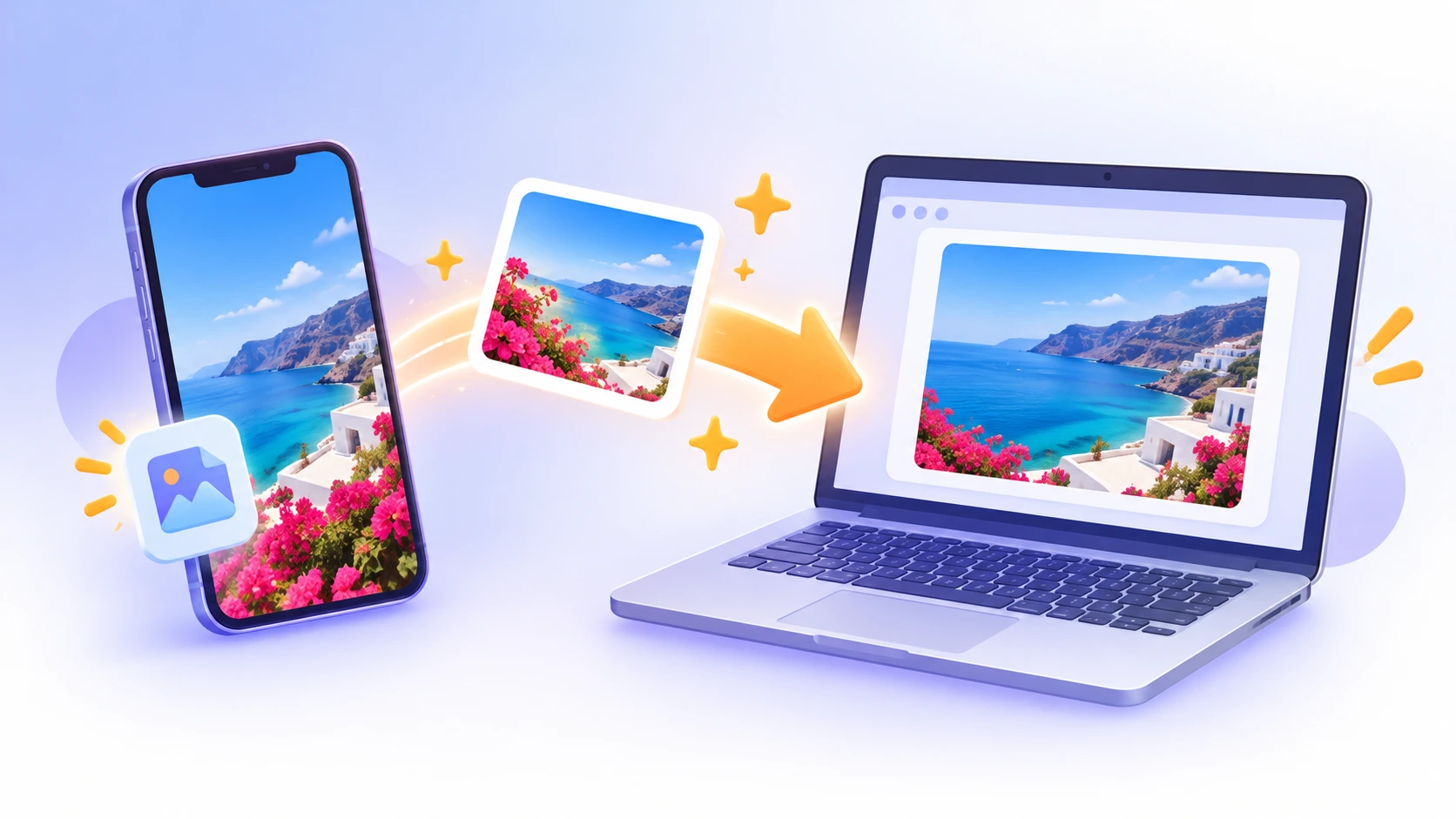
You copy photos from your iPhone to a Windows laptop, and they won’t open. Or an upload form rejects them. The culprit is the HEIC format. The fix is simple: convert HEIC to JPG, the format every device and website understands.
This guide explains what HEIC is, how to convert it for free on any device, and how to stop your iPhone creating HEIC files in the first place.
What is a HEIC file?
HEIC is the default photo format on iPhones and iPads since iOS 11. It’s based on the High Efficiency Image File Format (HEIF). The big advantage is size: a HEIC photo is roughly half the size of a JPG of the same quality.
HEIC also supports features JPG doesn’t, such as 16-bit color and storing several images in one file for Live Photos and bursts. You can read more in the HEIF article on Wikipedia.
The downside is compatibility. Many Windows PCs, older Android phones, websites and apps still can’t open HEIC files. JPG works everywhere.
How to convert HEIC to JPG (any device)
ToolBubble’s HEIC to JPG converter works in any modern browser on Windows, Mac, Linux, Android and iPhone. The conversion happens on your device, so your photos are never uploaded.
- Open the HEIC to JPG tool on ToolBubble.
- Drag and drop your HEIC photos into the upload area, or click to browse.
- Wait a moment while each photo converts in your browser.
- Download your JPG files.
That’s all. No app to install, no account, and no watermark on your photos.
HEIC to JPG or HEIC to PNG?
Most people should choose JPG. It’s smaller and accepted everywhere. PNG is lossless, which makes sense in a few specific cases.
| Choose | When | File size |
|---|---|---|
| JPG | Sharing, email, social media, websites, printing | Small to medium |
| PNG | Editing in design software, screenshots, archiving without loss | Large |
If you need lossless files, use the HEIC to PNG converter instead.
How to convert HEIC to JPG on Windows
On Windows, the browser method is the easiest. Copy the photos from your iPhone to your PC, then open ToolBubble in Chrome, Edge or Firefox and convert them in one go.
Some Windows installs can open HEIC files after adding a codec from the Microsoft Store. Even then, many programs and websites won’t accept them, so converting is still the safest option for sharing.
How to convert HEIC to JPG on Mac
Macs open HEIC files natively. To convert one, open it in Preview, choose File → Export, pick JPEG as the format and save. For many photos at once, ToolBubble in Safari or Chrome is quicker.
How to convert HEIC to JPG on iPhone
iPhones often convert automatically when you share. Sending a photo by email or to many apps produces a JPG. But AirDrop to a Mac and some file transfers keep the HEIC format.
To be sure, open ToolBubble in Safari on your iPhone, tap the upload area, choose the photos and download the JPGs to your Files app.
How to stop your iPhone saving HEIC photos
If you’re always converting, change the camera setting:
- Open Settings.
- Tap Camera, then Formats.
- Choose Most Compatible.
New photos will be saved as JPG. The trade-off is that they take up about twice the storage. Existing photos stay as HEIC.
There’s also a transfer setting. In Settings → Photos, under “Transfer to Mac or PC,” choose Automatic. Your iPhone then converts photos to JPG when you copy them to a computer by cable.
Does converting lose quality?
JPG uses lossy compression, but at a high quality setting the result looks identical to the original. You won’t see a difference on screen or in normal prints.
Don’t be surprised if the JPG is larger than the HEIC. HEIC compresses more efficiently, so the same picture needs more bytes as a JPG. If size matters, run the JPGs through the image compressor afterwards.
What about Live Photos and bursts?
A Live Photo stores a still image plus a short video clip. Converting to JPG keeps the still image only. If you want the motion, save the Live Photo as a video on your iPhone first.
Burst photos are usually saved as separate images once you pick your favorites. Convert the ones you keep.
Why do some websites reject HEIC uploads?
Job portals, government forms, online shops and many social sites only accept JPG and PNG. Their systems were built before HEIC existed, and adding support takes work. Some browsers also can’t display HEIC images on a web page.
When a form says “unsupported file type,” converting to JPG fixes it in seconds. Check the size limit too. Many forms cap uploads at 2–5 MB, so you may need to resize or compress the JPG as well.
Sending iPhone photos to Android friends
Messaging apps usually convert photos automatically, but quality can suffer because apps compress images heavily. For full-quality photos, convert HEIC to JPG first and share the files through cloud storage or email.
Keeping your photo details private
Photos store EXIF metadata, including the date, camera model and often your GPS location. That information can carry over into the JPG.
Before posting photos publicly, you can remove it with the EXIF Metadata Remover. It works in your browser and leaves the picture unchanged.
HEIC vs JPG: a quick comparison
| HEIC | JPG | |
|---|---|---|
| File size | About half of JPG | Larger |
| Color depth | Up to 16-bit | 8-bit |
| Transparency | Supported | Not supported |
| Windows support | Limited without extras | Universal |
| Website uploads | Often rejected | Always accepted |
| Best for | Storing photos on Apple devices | Sharing, printing and publishing |
A sensible approach is to keep HEIC on your iPhone, where it saves space, and create JPG copies only when you need to share.
Converting a whole photo library
Need to move years of iPhone photos to a Windows PC or an Android phone? Work in batches of 50–100 photos. That keeps the browser responsive, and if something goes wrong you only redo one batch.
Organize the JPGs into folders by year or event as you go. It’s much easier than sorting thousands of files later. Keep the original HEIC files as a backup until you’ve checked the converted set.
Making JPGs ready for the web
iPhone photos are 12 megapixels or more, which is far bigger than any website needs. After converting, resize them to around 1600–2000 pixels wide and compress at about 80% quality. A 3 MB photo can drop below 400 KB with no visible difference.
This step matters for online shops, blogs and portfolios, where large images slow pages down.
Common problems and fixes
The converted photo is rotated. Some apps ignore orientation data. Fix it with the Rotate Image tool.
The file isn’t really HEIC. Some files use the .heif extension, or are already JPGs with the wrong name. Try opening them in an image viewer first.
Conversion is slow. HEIC decoding is demanding. Convert in smaller batches on older phones, or use a laptop for hundreds of photos.
Upload forms still reject the photo. The file may be too large. Resize it with Resize Image to around 2000 pixels wide.
Conclusion
The easiest way to convert HEIC to JPG is in your browser with ToolBubble. Drop in your iPhone photos and download JPGs that open on any device. If you convert often, switch your iPhone camera to Most Compatible.
Try the free HEIC to JPG converter now. It’s fast, private and works everywhere.
Frequently asked questions
What is a HEIC file?
HEIC is the photo format iPhones use by default. It stores images using the HEIF standard, which keeps quality high at roughly half the size of a JPG.
Why can’t I open HEIC files on Windows?
Windows doesn’t include HEIC support by default on many setups. You may need an extra codec, or you can simply convert HEIC to JPG, which opens everywhere.
Does converting HEIC to JPG lose quality?
JPG uses lossy compression, but at a high quality setting the difference is invisible. The JPG will usually be larger than the HEIC file.
How do I stop my iPhone from taking HEIC photos?
Go to Settings → Camera → Formats and choose Most Compatible. New photos will be saved as JPG instead of HEIC.
Is it safe to convert iPhone photos online?
With ToolBubble, yes. The converter runs in your browser, so your photos are processed on your device and never uploaded.
- #heic
- #jpg
- #iphone photos
- #image converter
- #heic to jpg
Written by
ToolBubble Team
The team behind ToolBubble, a free collection of browser-based tools for files, media and everyday work.
More in Image Guides
How to Reduce Image Size Without Losing Quality (2026)
Learn how to reduce image size without losing quality. Compress, resize and convert JPG, PNG and WebP photos for free in your browser, with no upload.
Can’t find the tool you need?
Tell us what you’re trying to do. Many ToolBubble tools started as a request from someone like you.