How to Merge PDF Files Into One (Free, No Upload)
Learn how to merge PDF files into one document for free. Combine, reorder and tidy PDFs in your browser with no upload, no signup and no watermark.
In this article
- Why merge PDFs into one file?
- How to merge PDF files in 4 steps
- Getting the page order right
- How to merge PDF files with different page sizes
- Fixing sideways or upside-down pages
- What if the merged PDF is too big?
- Combining images and PDFs together
- Can you merge password-protected PDFs?
- Is it safe to merge PDFs online?
- Common problems and quick fixes
- Merging PDFs on a phone
- Merge vs. attach: which should you send?
- Tips for professional-looking merged PDFs
- Conclusion
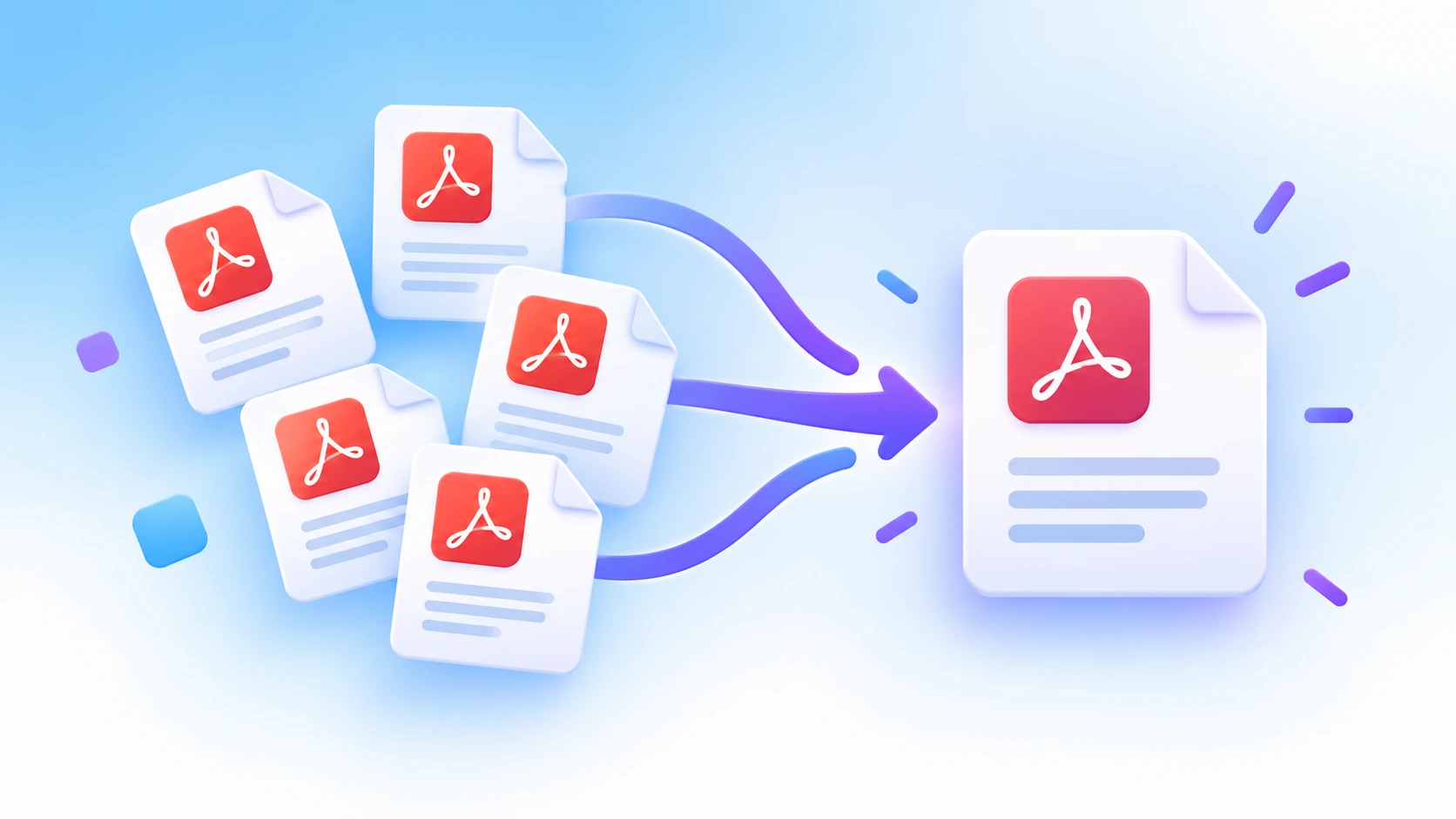
Sending five separate attachments is messy. Your reader has to open each one, and it’s easy to miss a page. Learning how to merge PDF files into one tidy document takes less than a minute, and you don’t need Adobe Acrobat or any paid software.
This guide shows you how to combine PDFs for free in your browser, how to get the page order right, and how to handle tricky cases like scanned pages, huge files and password-protected documents.
Why merge PDFs into one file?
A single PDF is easier for everyone. Here are the most common reasons people combine documents:
- Job applications. Put your cover letter, CV and references in one file, in the order the recruiter expects.
- Invoices and receipts. Combine a month of receipts into one expense report.
- School and university work. Join a title page, essay and appendix before submitting.
- Contracts. Attach signed pages and schedules to the main agreement.
- Scanned paperwork. Turn a pile of one-page scans into a single document.
One file is also easier to name, store and find later. It’s simply more professional.
How to merge PDF files in 4 steps
ToolBubble’s free PDF merger runs entirely in your browser using the PDF-lib library. Your files are never uploaded, and there are no watermarks or file limits.
- Open the tool. Go to Merge PDF on ToolBubble.
- Add your files. Drag and drop two or more PDFs into the upload area, or click to browse.
- Set the order. Drag the file cards so they appear in the order you want in the final document.
- Merge and download. Click Merge PDFs. The combined file downloads automatically.
Open the merged file and scroll through it once. Check that the page order is right and every page is the right way up.
Getting the page order right
The order of files on screen is the order of pages in the final PDF. A little planning saves you from merging twice.
Name your files with numbers before you start, such as 01-cover-letter.pdf, 02-cv.pdf and 03-references.pdf. They’ll sort correctly when you select them, and you’ll spot gaps immediately.
If you need pages from different files mixed together, for example page 1 from file A and then all of file B, split the files first. Use Split PDF to extract the exact pages, then merge the pieces in order.
How to merge PDF files with different page sizes
You can merge A4, Letter and landscape pages in one file. PDF stores the size of each page separately, so nothing gets stretched or cropped.
Mixed sizes can look a little uneven when someone scrolls through the document. That’s fine for most uses. If you’re printing, check the print dialog for an option like “Fit to page” so everything lands on the same paper size.
Fixing sideways or upside-down pages
Scanned pages often come out sideways. Fix them before or after merging with Rotate PDF. You can rotate one page or all of them by 90°, 180° or 270°.
Rotation in a PDF is lossless. It changes how the page is displayed, not the content itself, so there’s no quality loss.
What if the merged PDF is too big?
Merging adds the sizes of all your files together. Five 5 MB scans become one 25 MB PDF, which may be too big for email.
Run the merged file through the PDF compressor. Start with a light level to keep text sharp. Scanned pages usually shrink a lot, because they’re stored as images.
Here’s a quick guide to target sizes:
| Where you’re sending it | Aim for |
|---|---|
| Email attachment | Under 10 MB |
| Job application portal | Under 2–5 MB (check the form) |
| Government or university upload | Check the stated limit, often 2–10 MB |
| Cloud storage or archive | Any size, but smaller is faster to open |
Combining images and PDFs together
Got a photo of a receipt or a screenshot you need to include? Convert it first with Image to PDF. It turns JPG, PNG and WebP images into PDF pages. Then merge that file with your other PDFs.
This is handy for expense reports, insurance claims and visa applications, where you often mix scanned forms with phone photos.
Can you merge password-protected PDFs?
Encrypted PDFs can’t be merged until they’re unlocked. Open the file with its password in your PDF reader, then save or print it to a new, unprotected PDF. Merge that copy instead.
Only do this for files you own or have permission to change. If the merged file needs protecting, add a password afterwards in your PDF software.
Is it safe to merge PDFs online?
Many online PDF tools upload your files to remote servers. That’s a privacy risk for contracts, IDs, payslips and medical records.
ToolBubble works differently. The merge happens inside your browser tab, on your own device. Nothing is uploaded, stored or seen by anyone else. You can even disconnect from the internet after the page loads and it still works.
If you’re curious how PDF documents are built from pages and objects, the PDF article on Wikipedia is a good introduction.
Common problems and quick fixes
A file won’t load. It may be damaged or not a real PDF. Try opening it in your PDF reader and saving a fresh copy.
Pages are in the wrong order. Merge again from the original files after reordering them. You can also split and re-merge the result.
Links or form fields stopped working. Interactive features like form fields and bookmarks may not carry across perfectly. Fill in forms before merging for the best results.
The browser feels slow. Very large merges use your device’s memory. Merge in smaller groups, then merge the groups together.
Merging PDFs on a phone
You don’t need a computer to combine documents. ToolBubble works in Safari on iPhone and Chrome on Android.
- Save the PDFs to your phone’s Files app or Downloads folder.
- Open ToolBubble’s Merge PDF tool in your browser.
- Tap the upload area and select the files.
- Drag the cards into order, tap Merge, and save the result.
On iPhone, the merged file goes to Downloads in the Files app. From there you can share it by email, WhatsApp or AirDrop.
Merge vs. attach: which should you send?
Merging isn’t always the right call. If the recipient needs to forward each document to a different person, separate files may be easier. For example, an accountant might send your payslips to one team and your receipts to another.
When in doubt, merge documents that are read together and keep separate the ones that are handled separately. You can also send a zipped folder with the ZIP Creator if you have many related files.
Tips for professional-looking merged PDFs
- Put a short cover page first so the reader knows what’s inside.
- Keep orientation consistent where you can.
- Give the final file a clear name, like
jane-smith-application-2026.pdf. - Check the file size before sending, and compress if needed.
Conclusion
Now you know how to merge PDF files into one clean document: add your files, set the order, merge, and check the result. Rotate any sideways pages and compress the final file if it’s too large to send.
Try ToolBubble’s free PDF merger now. It’s fast, private and has no limits.
Frequently asked questions
How do I merge PDF files for free?
Use ToolBubble’s Merge PDF tool. Add your files, put them in order and click Merge. It’s free, has no file limits or watermarks, and needs no account.
Does merging PDFs reduce quality?
No. Merging copies each page as it is, so text, images and fonts keep their original quality. Nothing is re-compressed.
Can I merge PDFs on my phone?
Yes. ToolBubble works in mobile browsers on iPhone and Android. Tap the upload area, choose the PDFs from your files and merge them.
Are my PDFs uploaded to a server?
No. The merge runs locally in your browser using the PDF-lib library, so your documents never leave your device.
Can I merge only some pages from each PDF?
Yes. Extract the pages you need with Split PDF first, then merge the extracts into one document.
- #merge pdf
- #combine pdf
- #pdf tools
- #documents
Written by
ToolBubble Team
The team behind ToolBubble, a free collection of browser-based tools for files, media and everyday work.
More in PDF Guides
How to Compress a PDF Without Losing Quality (Free Guide)
Learn how to compress PDF without losing quality in your browser. Shrink big PDFs for email and uploads while keeping text sharp, free and private.
Can’t find the tool you need?
Tell us what you’re trying to do. Many ToolBubble tools started as a request from someone like you.